
Download Sources
Device Configuration
Split APKs Installation Guide
Some apps are distributed as Split APKs (multiple .apk files packaged together) to optimize resources. Standard Android installers cannot open them.
Related Applications





What's New
Several stability improvements and bug fixes.
About this app
Family Link parental controls is the companion app to Family Link for parents. Please only download this app to a device being used by a child or teen.
Try the Family Link parental controls app from Google. Whether your children are younger or in their teens, the Family Link app lets you set digital ground rules remotely from your own device to help guide them as they learn, play, and explore online. For children under 13 (or the applicable age of consent in your country), Family Link also lets you create a Google Account for your child that's like your account, with access to most Google services.
With Family Link parental controls, you can:
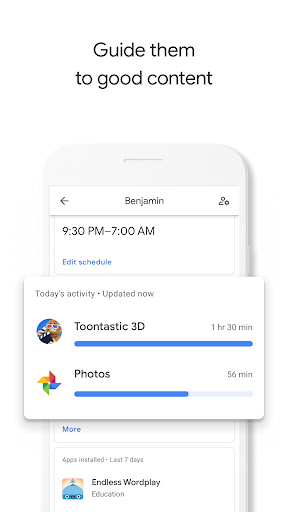
Guide them to good content
• View app their activity - Not all screen time is the same. Help your child make healthy decisions about what they do on their Android device, with activity reports showing how much time they’re spending on their favorite apps. You can see daily, weekly, or monthly reports.
• Manage their apps - Handy notifications let you approve or block apps your child wants to download from the Google Play Store. You can also manage in-app purchases, and hide specific apps on their device all remotely from your own device.
• Feed their curiosity - It can be hard to figure out what apps are right for your child, so Family Link shows you teacher-recommended apps on Android that you can add directly to their device.
Keep an eye on screen time
• Set limits - It’s up to you to decide the right amount of screen time for your child. Family Link lets you set time limits and a bedtime for their supervised devices, so you can help them find a good balance.
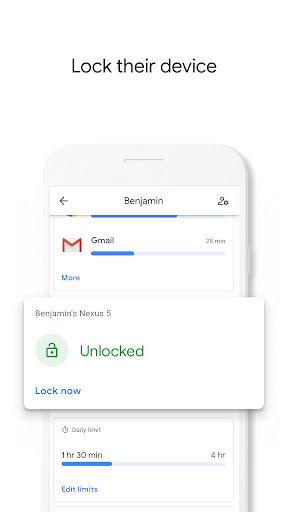
• Lock their device - Whether it’s time to go play outside, have dinner, or just spend time together, you can remotely lock a supervised device whenever it’s time to take a break.
See where they are
• It’s helpful to be able to find your child when they’re on the go. You can use Family Link to help locate them as long as they’re carrying their Android device.
Important Information
• Family Link’s tools vary depending on your child’s device. See a list of compatible devices at families.google.com/familylink/setup
• While Family Link helps you manage your child's purchases and downloads from Google Play, they will not need approval to install app updates (including updates that expand permissions), apps you have previously approved, or apps that have been shared in Family Library. Parents should regularly review their child’s installed apps and app permissions in Family Link.
• You should carefully review the apps on your child’s supervised device and disable those you don’t want them to use. Note that you may not be able to disable some pre-installed apps.
• To see the location of your child or teen’s device, it must be powered on, recently active, and connected to the internet.
• Teacher-recommended apps are only available on Android devices in the US to parents of children of certain ages.
• While Family Link provides tools to manage your child’s online experience, it does not make the internet safe. Rather, it is intended to give parents choices about how their kids use the internet, and encourage conversations about internet use.
How to Download Family Link parental controls APK
- Enter the package name
com.google.android.apps.kids.familylinkhelperon the APK Downloader homepage. - Select your device architecture (ARM64 recommended for modern devices).
- Click Download to get the merged APK file.
- Transfer and install the APK on your Android device.
- Keep Updated: Visit APK Downloader regularly to search for and download the latest secure versions of your favorite apps.
Security & Signature Verification
This APK download is 100% safe. We verify that the cryptographic signature of the file matches the official developer credentials. No modifications or adware are injected.